Turn a class schedule or school calendar into calendar events
Use a printed timetable, a school calendar or a screenshot of the student portal. Check each class before you save.
Scan with your iPhone camera to open the App Store
How to do it
- 1
Photograph or screenshot the schedule
Take a photo of the printed timetable or a screenshot of the student portal. Include the week or term dates.
- 2
Check each class
Photo2Calendar lists each class or date it found as an event. Compare subject, date, time and room with the schedule.
- 3
Save or export
Save to Apple Calendar, open in Google Calendar, or share an .ics file for Outlook.
Key features
Class details
Reads the subjects, room numbers and teachers shown in the timetable.
School dates
Reads term dates, holidays and events from a printed school calendar.
How it works
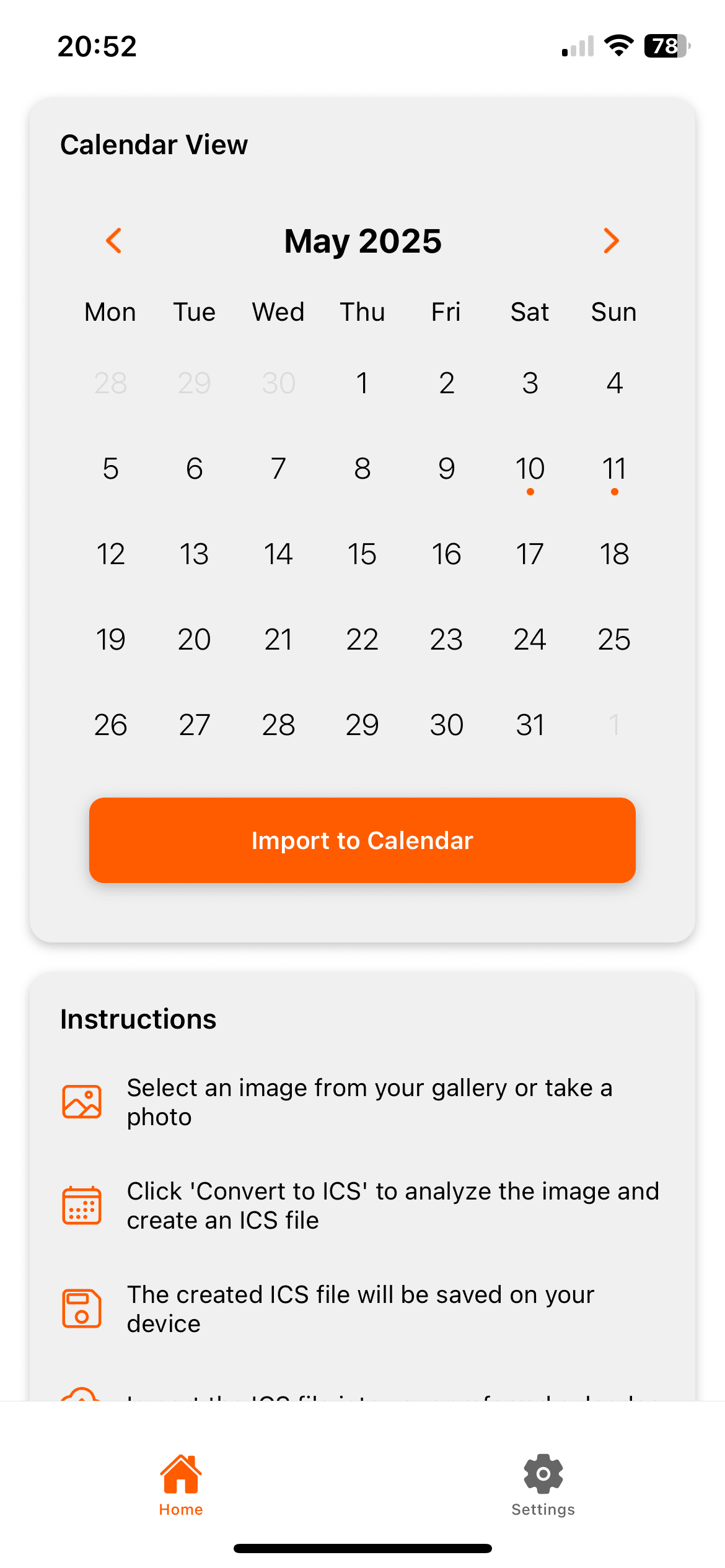
Photo2Calendar moves the details into your calendar so you do not have to type them. Take a photo or screenshot, check what the app found, and save the event.
- Use a photo or screenshot instead of retyping dates and times
- Check the details on the review screen before anything is saved
- Add to Apple Calendar or Google Calendar, or share an .ics file for Outlook
Photo2Calendar is an iPhone and iPad app. It reads photos, screenshots and PDFs up to 10 MB. Check the date, time, year and location before you save.
Scan a printed timetable
Lay the page flat in good light and photograph it straight on. Include the header with the week or term dates, so the month and year are in the image.
Scan a student portal screenshot
Open the week view in your school or university portal and take a screenshot. Zoom in first if the text is small. One screenshot per week keeps the drafts easy to check.
Weekly classes: check the date of each draft before saving
A weekly timetable often shows weekdays without dates. Confirm which week each class belongs to before you save. To repeat a class every week, set the repeat in Apple Calendar after saving.
Room numbers and locations
When the timetable shows a room or building, it goes into the event location. Compare it with the timetable, because short codes like B2.14 are easy to misread.
Check before saving
- The month and year, if the timetable only shows weekdays.
- The start and end time of each class.
- Room numbers and building names.
- Holidays and days without classes.
Who uses it
Students
High school and university timetables, on paper or in the student portal.
Parents
School calendars with term dates, holidays and events sent home on paper.
Teachers
Teaching schedules and lists of school events.
Frequently asked questions
Can I scan a printed university schedule?
Yes. Clear printed schedules work well. Check each class before you save.
Can I scan a PDF timetable?
Yes. Tap Select PDF to pick the timetable from the Files app, or share it to Photo2Calendar from Mail or Safari. The app reads every page, up to 10 MB.
Can I add the schedule to Google Calendar?
Yes. Tap Open in Google Calendar in the app. Photo2Calendar opens the event in Google Calendar, where you save it.
More examples
- Work rosterTurn a work roster or shift schedule into calendar events you check before saving.
- Fridge calendarTake a photo of the paper calendar on your fridge and save the family dates to your iPhone calendar.
- Handwritten noteTurn dates and plans from handwritten notes into calendar events you check before saving.
Put it on your calendar without typing it out
Free download with one free test scan during setup. Saving events needs a subscription: $1.99 a week, $4.99 a month, or $29.99 a year. No free trial.
Download on the App Store