
Gym Timetable to Calendar: One Photo, a Whole Term
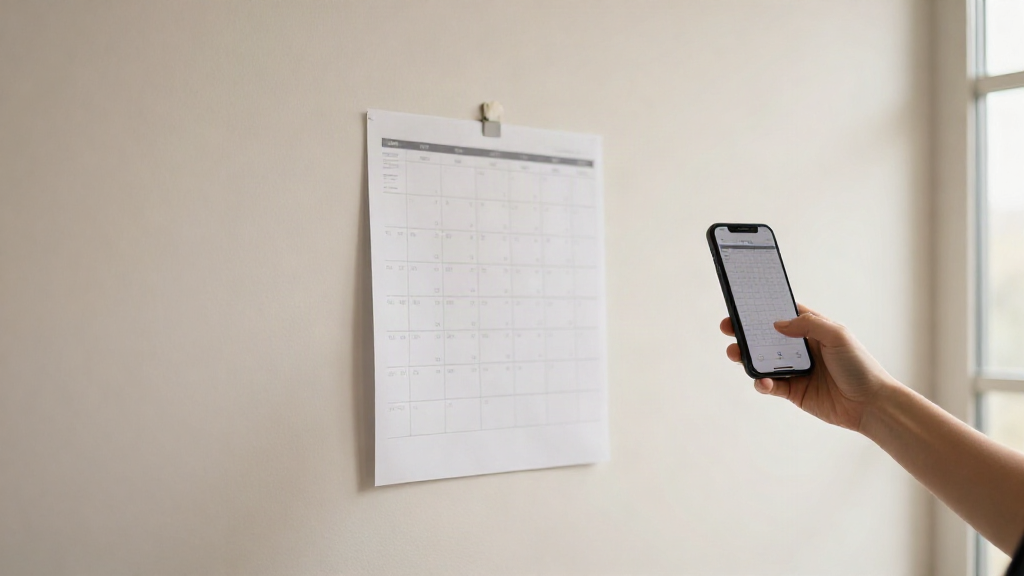
Every term starts the same way at a fitness studio. A new timetable goes up on the wall. Someone photographs it and drops it in the member chat. And every member who wants to attend a class rebuilds that schedule by hand, week after week, until the next timetable arrives.
This is a walkthrough of one term, from the moment a member opened a gym timetable photo to the point where twelve weeks of classes sat in a calendar. It shows what the scan handled in one pass, what needed fixing before saving, and how the schedule held up when the studio changed things. No feature list, just the steps.
What the timetable photo actually held
The photo was ordinary. A printed sheet taped to the studio wall, shot on a phone at a slight angle. It listed eight weekly classes across the same five days: spin and HIIT on weekday mornings, yoga and pilates in the evenings, a Saturday conditioning class. Each line carried a class name, a start time, a room, and an instructor's first name. Two lines had a short note about a temporary room change. At the bottom, a line of dates marked the start and end of the term.
That is the shape of most gym timetables. Repeating weekly classes, a handful of details per line, and a term range that says how long the pattern runs. Retyping it means eight entries, and each entry means a title, a day, a time, and a place filled in by hand.
Scanning the timetable photo
The member opened Photo2Calendar, chose the photo from the library, and started the scan. The image is processed on a server, not on the phone. The app reads the sheet and looks for titles, days, times, and places. It is built to pull several events out of one image, which is what a timetable is: a single photo holding a whole week of classes.
A few seconds later the scan returned a list. Each class had become its own event with a name, a weekday, a time, and a room. The term dates set the range, so each weekly class was ready to repeat rather than sit as a one-off.
Checking before you save
Nothing was saved yet. The review screen listed every event so each one could be read against the original photo. This step is the part that matters most. Blurry images and handwriting can lead the scan to miss a detail or read one wrong, so the app shows its work before anything reaches the calendar.
Two fixes were needed. One class start time had landed half an hour early, and one room note had not been attached. Both were edited on the spot in a few taps. Everything else matched the sheet. Once the list looked right, the member saved.
The term in the calendar
The saved events went to Apple Calendar, with each weekly class set to repeat across the term range. Members who keep their schedule somewhere else were not stuck: the events can be opened in Google Calendar, or exported as an .ics file for Outlook and other calendar apps.
The result was a full term of classes on the calendar from one photo and one review pass. The alternative, eight hand-typed entries, took far longer and invited its own mistakes.
When the studio moved a class
Halfway through the term, the studio shifted one evening class to a different room and pushed the start ten minutes later. Editing a single event took less time than a new scan would have, so that was the fix. When the studio later posted a genuinely new timetable, the member ran the photo through the same steps and replaced the old pattern.
Why this beats retyping a timetable
A gym timetable is a repeating schedule, and repeating schedules are where manual entry breaks down. Typing eight classes once is tedious. Typing them again each term, and again whenever a room or time shifts, is where wrong times and missed classes creep in. A scan does the bulk of the reading, the review step catches the rest, and recurring events keep the week accurate without weekly upkeep.
Do it yourself, step by step
Photograph the timetable or pick an existing shot from your library. Open the app and start the scan.
Read every event on the review screen against the photo. Check the day, the time, the room, and the class name, and fix anything that looks off.
Save. Choose Apple Calendar, open the events in Google Calendar, or share an .ics file for Outlook and other apps.
If the timetable changes mid-term, edit the single affected event. If a new timetable replaces the old one, scan the new photo and start again.
What the app does not do
A few limits are worth knowing before you start. Images are processed on a server, so a connection is needed to scan. The app runs on iPhone and iPad with iOS 17 or later. It is free to download, but scanning and export need a Premium subscription: $1.99 per week, $4.99 per month, or $29.99 per year at US prices. There is no free trial.
The scan is a reader, not a guarantee. Faint print, glare, and handwriting can lead to a missed or wrong detail. That is exactly why the review step exists, and why it is worth the extra minute before you save.
A term from one photo
A gym timetable to calendar flow used to mean a block of manual entry at the start of every term. Here it took one photo, one read-through, and a couple of corrections. The recurring events carried the schedule for twelve weeks, and the only later edit was a single moved class. Scan the timetable, check the details, and add them to your calendar.