Calendar App With Pictures: 7 Features That Save Time
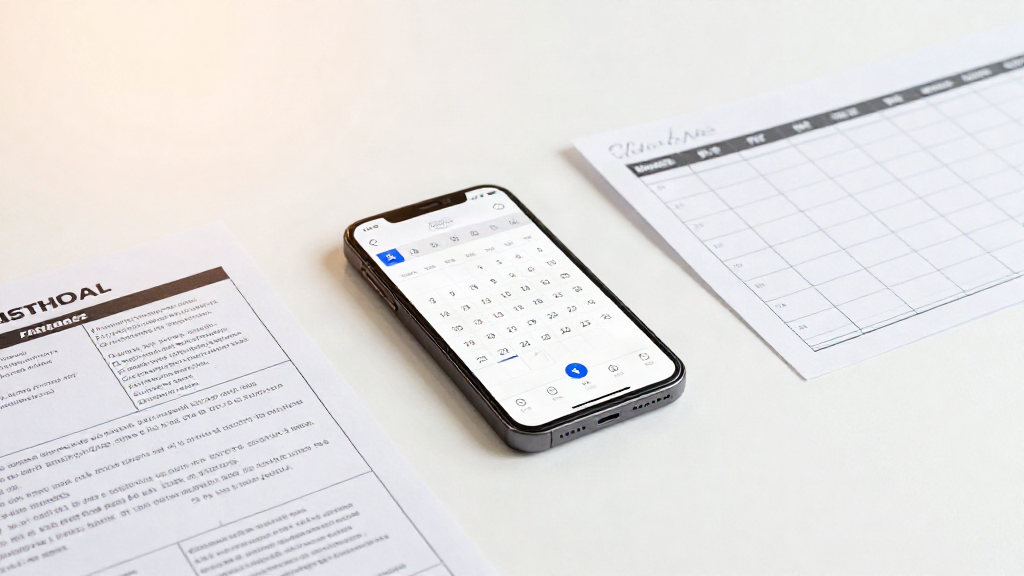
If you have ever retyped a school flyer, a shift roster, or a screenshot of an invitation into your phone, you already know the problem: the dates are sitting in a picture, and your calendar is somewhere else. A calendar app with pictures is built to close that gap. Instead of typing, you hand it the image and let it read the details for you. This list covers the seven features that actually matter when you compare these apps, and what each one means in daily use.
What a calendar app with pictures usually means
The phrase can point to two different things. Some apps put photos into your calendar for decoration. Others read the dates out of a photo and turn them into real events. The second kind is the one that saves you time, so every feature below is about capture, accuracy, and control rather than looks.
1. It reads several events from a single photo
A school term timetable or a monthly roster rarely holds one date. It holds dozens. The feature to look for is multi-event scanning: one image in, several events out. You should not have to crop the picture into pieces or run it through the app once per line. If a single photo of a class schedule can produce the whole week, you are looking at the right kind of tool.
2. It handles the formats you actually receive
Dates reach you in messy shapes. A printed flyer taped to a door. A poster at work. A wedding invitation. A paper calendar on the fridge. A handwritten note from a teacher. A screenshot from a message or an email. The best apps take all of these, not just clean digital images. Check the supported sources before you commit, because a tool that only reads crisp print will fail on exactly the photos you take in a hurry.
3. It pulls out titles, dates, times, and places
A calendar event is more than a date. You want the title, the start time, the end time, and the location filled in too, so the entry is useful later. This is the feature that decides whether the result saves you work or just moves the typing somewhere else. When you compare apps, test with one of your own photos and see how much of the event comes through complete.
4. It lets you review and edit before saving
This is the feature people forget to check and then regret. Reading text out of an image is not perfect, especially with handwriting or a blurry shot. So a good app shows you what it found and lets you fix every field before anything lands in your calendar. A check-before-you-save step keeps a wrong time or a missing location from quietly becoming a real appointment. Look for edit controls on the preview screen, not just a save button.
5. It exports to the calendar you already use
You do not want a second calendar to maintain. The app should hand the finished event to the calendar you already live in. That can mean saving straight to Apple Calendar, opening the event in Google Calendar, or sharing an .ics file that works with Outlook and other calendar apps. The wider the export options, the less likely you are to be locked into one ecosystem.
6. It works on the phone and tablet you carry
Capture happens in the moment, so the app needs to run where your camera is. For most people that means iPhone and iPad, on a recent version of iOS. A tablet matters more than it sounds: reviewing a busy timetable is easier on a bigger screen. Confirm the app supports the devices and system version you own before you rely on it.
7. It is honest about limits and pricing
Two things to weigh here. First, how the app processes your images. Some tools do the work on a server rather than on your device, which is fine as long as you know it. Second, what the pricing really looks like. Plenty of these apps are free to download but charge for scanning and export through a subscription, often billed weekly, monthly, or yearly. Read the fine print and check whether a free trial is included, because some apps do not offer one. Clear, upfront terms are a feature in their own right.
How to weigh these features
Not every feature carries the same weight. If your dates mostly arrive as clean digital screenshots, scanning accuracy matters less and export options matter more. If you deal with flyers, rosters, and handwriting, then multi-event scanning and a solid review step move to the top of your list. Sort the seven by how often you would actually use them, and you will know which app fits.
Where Photo2Calendar fits
Photo2Calendar is built around these ideas. It reads flyers, timetables, work rosters, handwritten notes, paper calendars, and screenshots on iPhone and iPad, finds the titles, dates, times, and places, and lets you check and edit every detail before you save. It saves to Apple Calendar, opens events in Google Calendar, or shares an .ics file for Outlook and other calendar apps. Images are processed on a server, and scanning and export need a Premium subscription at $1.99 per week, $4.99 per month, or $29.99 per year. There is no free trial, so you know the terms before you start.
The bottom line
A calendar app with pictures should turn a photo into a saved event in seconds, without retyping and without surprises. The features above are the ones that make that happen: multi-event capture, wide source support, complete details, a review step, real export options, support for your devices, and honest terms. If an app covers those, the picture on your phone finally becomes the appointment on your calendar.