
Turn a Screenshot into
a Calendar Event on iPhone
Stop manually typing event details from screenshots. Photo2Calendar reads emails, chats, website schedules, and Google Calendar screenshots, then lets you review the event before saving it.
Scan with iPhone
Already on iOS 26? Try the built-in option first
On iPhones with Apple Intelligence, iOS 26 can turn a screenshot into a calendar event with Visual Intelligence. Take the screenshot, tap Add to Calendar, and edit the event before you create it. For a single event, that is often all you need. How iOS 26 screenshot to calendar works, and its limits.
Photo2Calendar helps when one image holds several events, when the source is paper, when you need an .ics file for Google Calendar or Outlook, or when you want every field in front of you before saving.
Illustrative example
From a screenshot to a reviewed event
This fictional invitation shows what to check at each stage. The cards illustrate the information flow; they are not app screenshots or actual scan results.
1. Screenshot text
Riverside drawing workshop
12 November 2026 · 18:30–20:00
Studio 4, Riverside Arts Centre, London
Bring a sketchbook.
Keep the year, full time range, and venue visible when you capture the screenshot.
2. Recognized fields
Illustrative draft to compare with the source:
- Title
- Riverside drawing workshop
- Date and time
- 12 November 2026, 18:30–20:00
- Location
- Studio 4, Riverside Arts Centre, London
- Notes
- Bring a sketchbook.
3. Reviewed calendar event
Riverside drawing workshop
12 November 2026 · 18:30–20:00
Studio 4, Riverside Arts Centre, London
- Confirm London local time with the organizer; the screenshot does not state a time zone.
- Choose your personal calendar and a reminder that suits you.
- After saving, open the event once to confirm its date, time, and calendar.
If a screenshot says only “tomorrow” or leaves out the year or end time, confirm that detail before saving. A plausible-looking draft still needs review. For every field the app reads and the most common mistakes, see how to extract calendar events from an image.
Finish in Apple Calendar, Google Calendar, or Outlook
Review the event first, then choose one destination. Importing the same file more than once can create duplicate events.
Apple Calendar
If the iPhone save flow offers a calendar picker, choose the calendar you want before confirming. For a documented ICS fallback on Mac, open Calendar, choose File → Import, select the exported .ics file, and click Import. Choose the destination calendar and click OK.
Apple’s calendar import instructionsGoogle Calendar: import on a computer
Save the exported .ics file to your computer. In Google Calendar, open Settings → Import & Export, select the file, choose the calendar, and click Import. Google’s file-import workflow is computer-only; it is not an import button in the iPhone app.
Read the Google Calendar photo and import guideOutlook.com: upload the ICS file
Save the .ics file to your computer. In Outlook.com Calendar, choose Add calendar → Upload from file → Browse. Select the file and destination calendar, then click Import.
Microsoft’s calendar import instructionsAn ICS import is a one-time copy. It does not keep the event linked to the screenshot or update it when the organizer changes the plan. Check the saved event in your chosen calendar and edit it if the source changes.
Use screenshots for
calendar events
The strongest results come from screenshots where the title, date, time, and location are visible in one image.
Email Invitations
Conference details, meeting requests, and appointment confirmations.
Social Media Events
Instagram concert posts, Facebook events, Twitter announcements.
Chat Messages
Plans made in WhatsApp, iMessage, or Slack conversations.
Website Schedules
Class times, conference agendas, and booking confirmations.
Can it read a Google Calendar screenshot?
Yes, if the screenshot includes the event title, date, and time. Use this when you receive a calendar screenshot from someone else and want an editable event in your own Google Calendar, Apple Calendar, or Outlook calendar.
How It Works
Take a Screenshot
Capture event information from an app such as email, Instagram, Safari, or Messages.
Open Photo2Calendar
Select the screenshot. Our AI reads the title, date, time, and location for review.
Add to Calendar
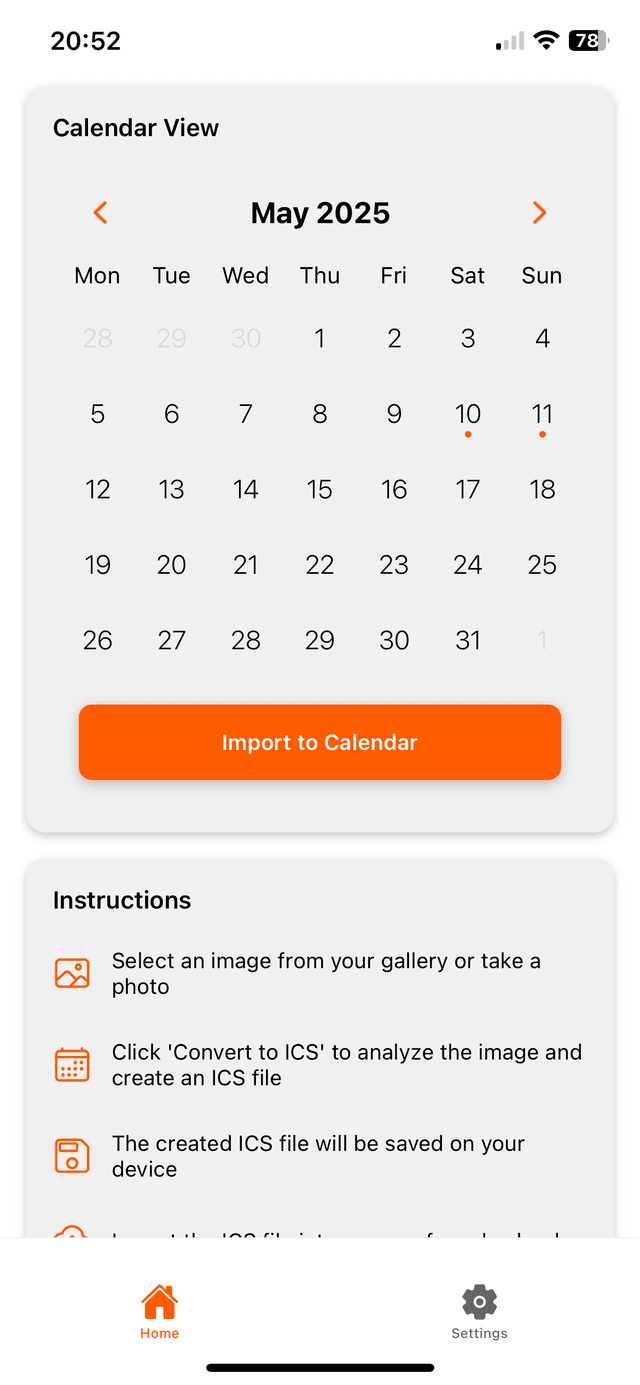
Review the details, then save the event or export a standard ICS file for a compatible calendar app.
Screenshot to calendar in other languages
Choose a language to read the same screenshot workflow with local examples.
Stop Typing. Start Snapping.
Turn the next screenshot with a date and time into an editable event. Download free, then choose weekly, monthly, or yearly access.
Scan with iPhone