
How to Add a Wedding Invitation to Your Calendar From a Photo
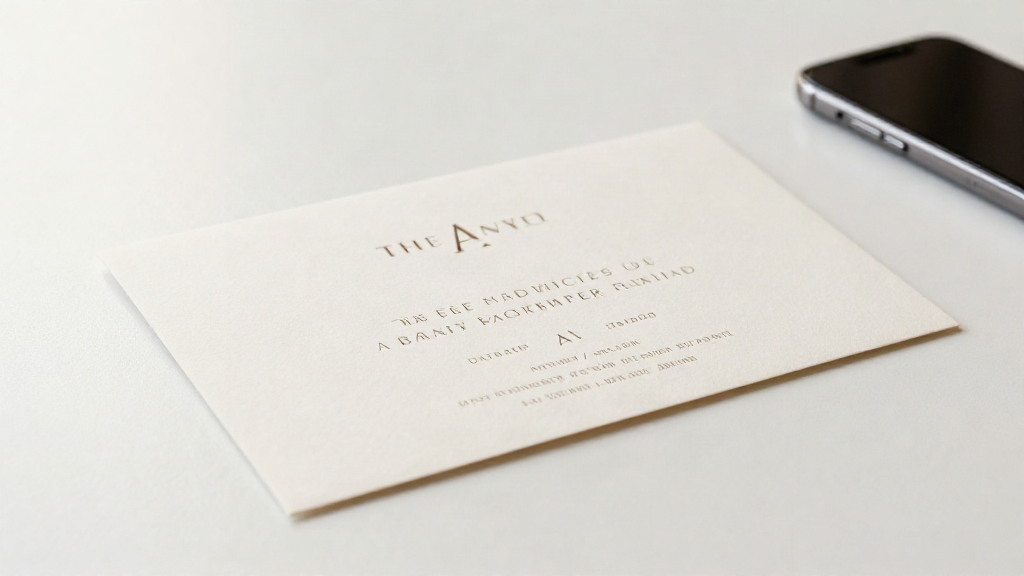
Wedding invitations carry more than one date. There is the ceremony, the reception that follows, the RSVP deadline, and sometimes a hotel booking cut-off. If all you have is a paper card or a photo of one, those dates can sit unread on the kitchen counter while the weeks slide past.
You do not have to retype any of it. If you are on an iPhone or iPad, you can turn a photo of the invitation into calendar events in a few steps. Here is how to do it so the details land in the right place the first time.
Before you start: get a photo that reads clearly
The whole process depends on the photo. Take the picture straight on, in even light, with the entire card inside the frame. Avoid glare from a window or a lamp, and keep your own shadow out of the shot.
Lay the invitation flat on a plain surface. If the card is folded, photograph each panel that holds dates, or open it flat if you can.
Blurry photos and handwriting are the two most common reasons a date comes through wrong. If the ink is faint or the card is creased, take a second shot before you move on.
Step 1: Scan the photo
Open Photo2Calendar on your iPhone or iPad (iOS 17 or later) and scan the photo of the invitation. The app reads titles, dates, times, and places from the image, including several events in a single picture.
One thing to know up front: images are processed on a server, not on your device. That is what lets the app handle a full invitation in one pass. You keep a copy of the results to check before anything is saved.
Step 2: Separate the ceremony, reception, and RSVP deadline
An invitation is rarely a single event. Pull the pieces apart before you save:
The ceremony has its own start time and often its own address. The reception may start later the same day, sometimes at a different venue. The RSVP deadline is a date you need on your calendar, not the couple's. Some invitations add a hotel block deadline or a rehearsal dinner for close guests.
Because the scan can return more than one event from a single image, you do not have to choose. Add each piece as its own entry so the ceremony alert and the RSVP reminder do not collide.
Step 3: Add the venue address
Copy the full address, not just the venue name. A name alone will not help you when you are driving and asking your phone for directions later.
Check the address against the invitation, including the ZIP code and any suite or hall number. If the ceremony and reception are in different places, give each event its own address so your maps app routes you correctly.
Step 4: Review every detail before you save
This is the step that matters most. Blurry photos and handwriting can lead to a missed or wrong detail, so read every field before you tap save. Confirm the date, the time, the time zone if you are traveling, and the venue address for each event.
Edit anything that came through wrong. The app lets you review and edit every detail, which is the whole point of the check-before-you-save step. Two minutes here saves a scramble on the day.
Step 5: Save and share with the rest of your party
When the details are right, save the events. You can add them to Apple Calendar, open them in Google Calendar, or share an .ics file that works with Outlook and other calendar apps.
If you are attending with a partner, a friend, or your family, share the events so everyone is working from the same dates. An .ics file is the simplest way to send the ceremony, the reception, and the RSVP deadline in one go.
What to do if the scan misses something
Not every invitation cooperates. Faint lettering, cursive scripts, and creased cards can trip up any capture tool. If a date comes through incomplete, take a clearer photo and scan again, or type in the missing field by hand.
If the card covers a detail the scan cannot read at all, enter it yourself and treat the scan as a head start rather than a finished job.
What you need
Photo2Calendar is free to download, and it works on iPhone and iPad with iOS 17 or later. Scanning and export need a Premium subscription: $1.99 per week, $4.99 per month, or $29.99 per year (US prices). There is no free trial.
The app is built for exactly this situation: a date you can only see in a photo, and a calendar you need it in now.
The short version
Photograph the invitation so the date, time, and venue all read clearly. Scan the photo, then separate the ceremony, reception, and RSVP deadline into their own events. Add the full venue address to each one. Review every field before you save, then share the events with the rest of your party.
You end up with the dates that matter already on your calendar, without retyping a single line from the card.