
How to Store Dates From Photos: 4 Options Compared
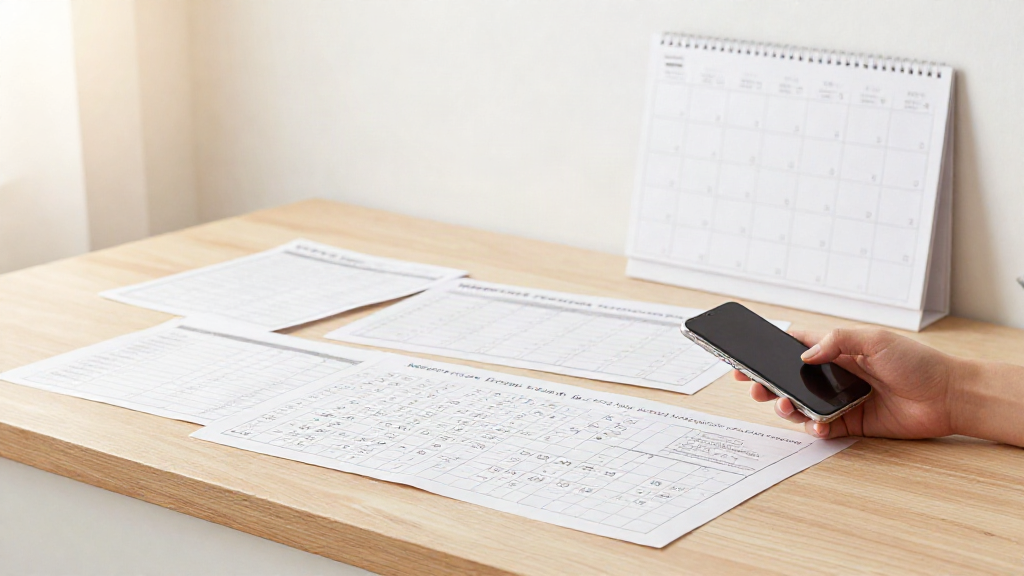
You find dates in photos all the time. A school flyer on the counter. A shift plan taped to a locker room wall. A wedding invitation. A screenshot of a text saying the appointment moved to Thursday. The date is already in your phone. It just is not anywhere you will look when the date finally matters.
That gap is the whole problem. Storing a date and remembering a date are two different jobs, and most of the quick options only do the first one. If you want to store dates from photos in a way that actually works later, it helps to compare the options honestly.
The four ways people keep a date from a photo
Nobody sits down and picks a system. You use whatever is fastest in the moment. In practice, that usually comes down to four things.
Leave it in the camera roll
The photo stays where the camera put it. This is the lowest-effort option, and it works fine for a while. The cost shows up later. The camera roll is sorted by when you took the photo, not by when the event happens. A flyer you photographed in September is buried under hundreds of photos by the time the event arrives in November.
Keep it in the screenshot folder
Screenshots have the same problem with an extra wrinkle. They pile up fast, and they all look alike. A screenshot of a group chat and a screenshot of a work schedule sit side by side with no way to tell them apart at a glance. You still have to remember the date is in there somewhere.
Set a reminder
A reminder is better than nothing because it will actually surface. But it lives in a separate place from your schedule. It does not block time, and it does not show you the whole picture of a day or a week. A reminder tells you something is happening. It does not hold the details, the time, or the place next to everything else you have that day.
Put it on the calendar
The calendar is the one place where a date is useful the moment it lands. It sits next to your other plans, it can carry a time and a place, and it shows up when you check your day. The catch is getting the details off the image and into the event without retyping all of it.
What each option costs you when the date finally matters
The honest test is not how fast an option feels today. It is whether the date is there, complete and correct, on the morning it counts.
The camera roll and the screenshot folder both fail the same way. They store the picture, not the date. When the event comes, you are scrolling and zooming and squinting at a photo, trying to read a time off a blurry flyer.
The reminder holds the date but strips the context. You get a ping that says the thing is happening, and then you are back in the image hunting for the details.
The calendar holds everything, but only if you typed it in. That is the part people skip, which is why so many real events never make it onto the schedule at all.
Where a scanned calendar event beats the alternatives
Photo2Calendar is built for exactly this gap. You scan a photo of a flyer, a poster, an invitation, a school timetable, a work roster, a paper calendar, a handwritten note, or a screenshot. The app finds the title, date, time, and place, handles several events in one image, and gives you every detail to review and edit before anything is saved.
That review step is the point. Nothing is added until you have checked it. Once it is right, you save to Apple Calendar, open the event in Google Calendar, or share an .ics file for Outlook and other calendar apps.
Two things worth being upfront about. Images are processed on a server, not on your device. And blurry photos or handwriting can lead to missed or wrong details, which is exactly why the app asks you to check before you save. It is a fast way to store dates from photos, not a promise that every image comes out perfect.
Where the alternatives still win
A scan is not the right tool for every date. If a photo is just a memory, leave it in the camera roll. If a date is a soft maybe, a reminder is lighter than a calendar entry. If you only need the date once and it is tomorrow, a screenshot within easy reach is fine.
The scan earns its place when a date is a real commitment: something with a time and a place, something you will need to show up for, and something you would otherwise be digging for in your photos.
A quick way to decide
Ask one question. Will you need this date again on the day it happens? If the answer is yes, it belongs on the calendar, and a scan gets it there without retyping. If the answer is no, the lighter options are enough.
What it costs
Photo2Calendar is free to download for iPhone and iPad (iOS 17 or later). Scanning and export need a Premium subscription: $1.99 per week, $4.99 per month, or $29.99 per year at US prices. There is no free trial.
The camera roll, the screenshot folder, and the reminder are all ways to hold onto a date. Only one of them puts the date where you will see it when it counts. Scan the image, check the details, and add them to your calendar.