
How to Save Event Details From a Screenshot to Your Calendar
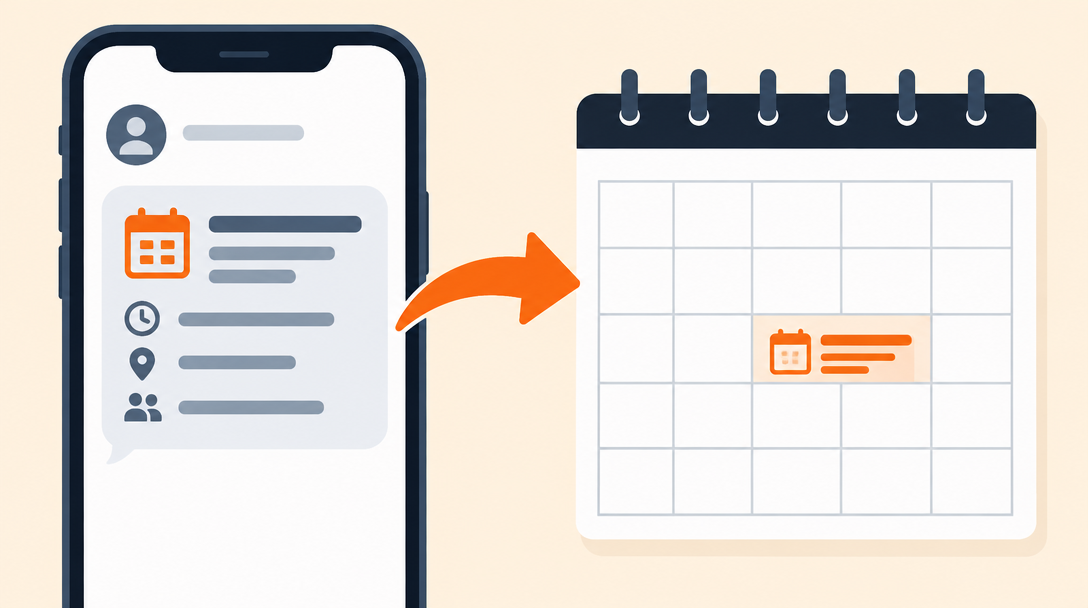
A friend sends a concert time in a chat. A hotel emails a check-in window. A club posts a practice schedule as a screenshot. The details are there, but they are not in your calendar. Here is how to move them over.
What you need
- An iPhone or iPad running iOS 17 or later
- The screenshot or photo of the message
- Photo2Calendar installed
Scanning and export need a Premium subscription: $1.99 per week, $4.99 per month, or $29.99 per year (US prices). There is no free trial.
Step 1: Pick the right screenshot
Choose the screenshot that shows the full event: the title, the date, the time, and the place. If the details span two screens, take two screenshots and scan each one.
Step 2: Scan the image
Open Photo2Calendar and select the screenshot. The app looks for titles, dates, times, and places. It can handle messages, emails, and posts.
Images are processed on a server, not on your device. Avoid scanning screenshots that contain passwords, account numbers, or other sensitive information you do not need to share.
Step 3: Review the details
Compare each detail with the message. Pay attention to:
- Time zones, if the message mentions a different city
- Dates written in a format you do not use every day
- Addresses that could match more than one place
Edit anything that is wrong or missing before you save.
Step 4: Save the event
Save to Apple Calendar, open the event in Google Calendar, or share an .ics file for another calendar app.
Keep a habit
When an important message arrives, take a screenshot and scan it right away. Details are easier to check while the message is still open.
Scan the screenshot, check the details, and add the event to your calendar.